
Groovepad for PC: Make Beats on a Bigger Screen
Download Groovepad App for Free
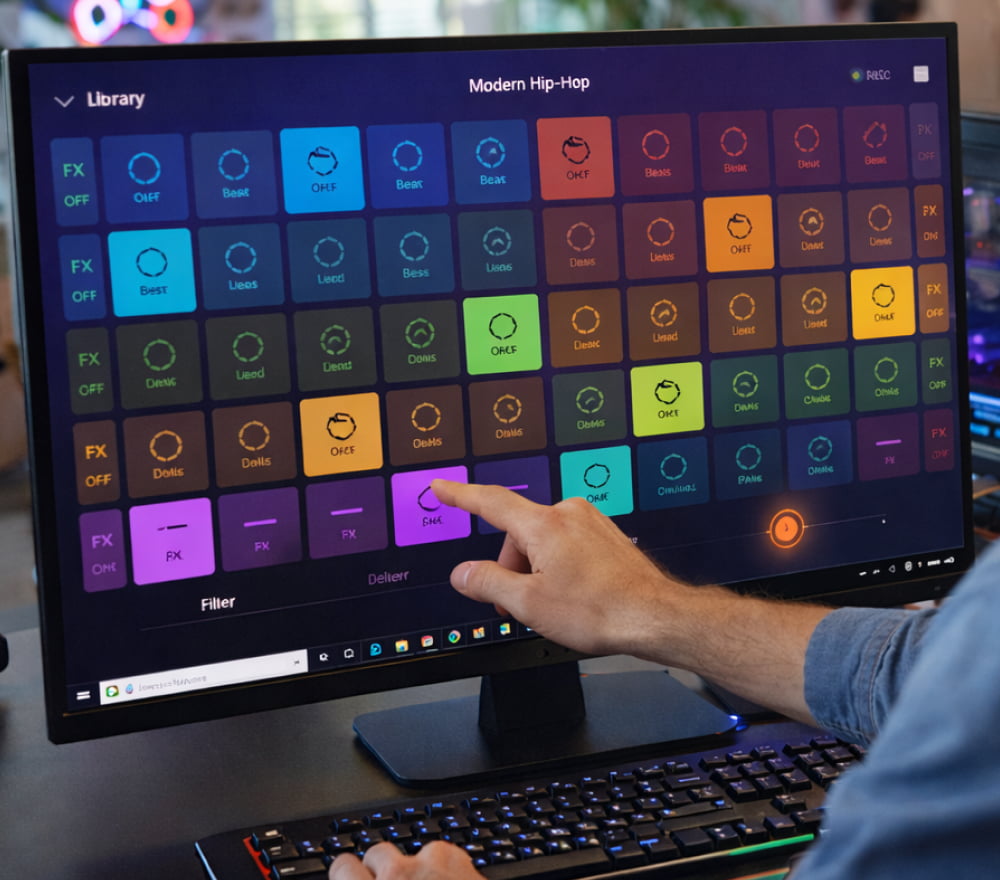
Download NowIf you enjoy building quick loops, dropping effects, and sketching song ideas in minutes, using Groovepad on a computer can feel like an instant upgrade. A larger display makes it easier to see your pads, patterns, and mix controls at a glance, while a keyboard and mouse help you navigate packs, tweak timing, and organize sessions more comfortably.
Many creators start on mobile, then move to desktop when they want longer sessions, better focus, and fewer distractions. With the right setup, you can keep your groove ideas flowing, record them cleanly, and share drafts fast whether you’re practicing rhythm, making short clips, or experimenting with genres.
Why Groovepad Feels Different on Desktop
- More space for multitasking: keep notes, references, or a file browser open while you create.
- Improved control: use precise pointer input for fast selection and quick adjustments.
- Comfort for longer sessions: a workstation setup can be easier on your hands and posture.
- Better file handling: exporting, naming, and organizing projects is typically quicker on a PC.
A good beat sketch is the one you can finish desktop comfort helps you stay in the zone long enough to turn a loop into a full idea.
Best Ways to Run It on Windows
Because Groovepad is primarily known as a mobile music-making tool, the most common approach on Windows is using an Android environment on your computer. This method can be convenient for practicing, drafting patterns, and saving quick exports especially if you prefer the desktop experience.
Option A: Android Emulator Approach
- Choose Android emulator for Windows and complete its setup.
- Sign in with your Google account inside the emulator to access the Play Store.
- Search the store, install the app, and configure audio settings for low latency if available.
- Connect headphones or speakers and test a few packs to confirm stable playback.
Option B: Keep Your Sessions Clean and Fast
- Close unnecessary background apps before you start.
- Use wired headphones if you notice delay over Bluetooth.
- Set a consistent tempo early, then build variations instead of constantly restarting.
- Export versions with clear names, such as “idea-01,” “idea-02,” and “final-draft.”
Quick Setup Checklist
| What to check | Why it matters | Practical tip |
|---|---|---|
| Audio output device | Reduces crackles and delay | Try wired headphones first for stable monitoring |
| Performance settings | Keeps playback smooth | Allocate more RAM/CPU to the Android environment if possible |
| Export location | Speeds up sharing and backups | Use a single “Beats” folder with dated subfolders |
Getting the App and Starting Your First Beat
When you’re ready to set everything up, start with the safest and most straightforward route installing through the Google Play Store inside your Android environment. This is typically the cleanest way to handle updates and avoid unreliable installers.
Some users search specifically for a Groovepad app download for PC, and the key is to focus on legitimate sources and a stable Android setup rather than random download pages. Once installed, pick one genre pack, build a simple 8-bar loop, then create two variations: one with fewer elements for the verse and one with extra layers for the drop. If you’re comparing phrases like Groovepad download for PC across guides, treat them as pointers toward the same goal: getting the mobile app running properly on Windows with consistent audio. Keep your first session simple timing, transitions, and clean exports matter more than stacking every sound at once.
Practical Tips for Better Results
- Limit yourself to one main rhythm and one hook layer before adding effects.
- Use short breaks and return with fresh ears to catch clashes or volume jumps.
- Create “A/B” versions: same beat, different drop energy.
- Export often so you can compare progress without losing earlier ideas.
When you see queries like Groovepad for PC download, it usually reflects the desire to move beatmaking into a more comfortable workspace. On desktop, you can iterate faster, save more versions, and stay organized especially if you treat each export as a snapshot of your creative path.
To keep things reliable, use the Play Store method when you plan to download Groovepad for PC, and stick to a consistent audio setup to avoid latency surprises. After that, it’s all about practice: build loops, explore transitions, and train your ear by making small improvements across multiple drafts.
One Simple Step-by-Step Flow
- Pick a pack and set a tempo you won’t change for the first draft.
- Build a basic groove with drums and bass, then add one melodic layer.
- Create a breakdown by muting two elements and adding a small variation.
- Export two versions: “clean” and “hyped,” then decide what you like best.
If your goal is to download and install Groovepad on PC for quick beat sketches, treat the first week as exploration: try different genres, learn where the best transitions live, and save short exports daily. That habit builds a library of ideas you can revisit whenever inspiration hits.
With a stable setup, Groovepad app on PC becomes a convenient way to practice structure intro, build, drop, and outro while enjoying the comfort of a full-size screen. The faster you can test variations, the sooner your loops start sounding like finished tracks.